Tuesday, November 12, 2024

Get address through code

Get all address of customer:-    

  CustTable                   customertableloc; 

  DirPartyTable               dirpartytableloc;  

 DirPartyLocation             dirPartyLocation; 

  LogisticsLocation            logisticsLocation;  

 Logisticspostaladdress      logisticspostaladdressloc;  


          customertableloc=CustTable::find("US-006"); 

  select dirpartytableloc    where customertableloc.Party == dirpartytableloc.RecId;

while   select dirPartyLocation  where dirPartyLocation.Party==dirpartytableloc.RecId    

          join      logisticsLocation where dirPartyLocation.Location==logisticsLocation.RecId    

   join     logisticspostaladdressloc    where logisticspostaladdressloc.Location == logisticsLocation.RecId  

{

     if(logisticspostaladdressloc.Address)   

      {       

          Info(strFmt("%1 ,%2", customertableloc.AccountNum,logisticspostaladdressloc.Address));   

      }

 }


Get Requester by Purchid through code :-


PurchTable purchTable ;

HcmWorker  hcmWorker;

DirPerson  dirPerson;

DirPartyTable dirPartyTable;


Select purchTable where purchTable.PurchId=="000006"

     join hcmWorker where hcmWorker.RecId==purchTable.Requester

     join dirPerson where dirPerson.RecId == hcmWorker.Person

     join dirPartyTable

     where dirPartyTable.RecId == dirPerson.RecId;

Info(strfmt("%1",dirPartyTable.Name));


Friday, November 1, 2024

Import 2019Visual studio D365fo projects into 2022Visual studio

 Scenario:-In this blog today we see how to import 2019Visual studio  D365fo projects into 2022Visual studio 

Generally we can import 2019Visual studio  D365fo projects in another 2019Visual studio  as well as we can import 2022Visual studio  D365fo projects in another 2022Visual studio. As we know that now Microsoft is using Visual studio2022  so there are some projects which are developed in Visual studio2019.So now if you want to import then you will get an error.

An unexpected error occured during the project import: The imported project"C:\Program Files (x86)\MSBuild\Microsoft\Dynamics\AX\Microsoft.Dynamics.Framework.Tools.BuildTasks.targets" was not found. Confirm that the expression in the Import declaration "C:\Program Files (x86)\MSBuild\Microsoft\Dynamics\AX\Microsoft.Dynamics.Framework.Tools.BuildTasks.targets" is correct, and that the file exists on disk.C:\Users\localadmin\source\repos\FinanceOperations1\FinanceOperations1.rnrproj

To get rid of this issue follow below steps .

Step1:-Go to File explorer  in VM. Now click on this PC as shown in below

Step2:-Now click on the folder where your vm located as shown in below

Step3:-Now click on Program Files(x86) folder as shown in below

Step4:-Now click on  MS Build folder as shown in below

Step5:-Now click on  Microsoft folder as shown in below

Step6:-Now click on  Dynamics folder as shown in below

Step7:-Now click on  AX folder as shown in below

Step8:-Now copy the first file as shown in below

Step9:-Now Paste the file as shown in below

Step10:-You can see the file with copy at ending as shown in below

Step11:-Now Rename the file with   Microsoft.Dynamics.Framework.Tools.BuildTasks.targets   as shown in below


Step12:-Its done .Just go back to visual studio  and import project .


As you can see project got imported successfully .Build the project and start developing. 


Thank you !!

Keep Daxing!!


Tuesday, October 22, 2024

Dimensions

 Financial Dimensions:-

 Create financial  Dimensions through code:-

 DimensionAttributeValueSetStorage   valueSetStorage= new DimensionAttributeValueSetStorage();

 DimensionAttribute      dimensionAttribute; 

DimensionAttributeValue dimensionAttributeValue;

 dimensionAttribute = dimensionAttribute::findByName("CostCenter"); 

dimensionAttributeValue =dimensionAttributeValue::findByDimensionAttributeAndValue(dimensionAttribute,"020",false,true);

 valueSetStorage.addItem(dimensionAttributeValue); 

this.DefaultDimension=valueSetStorage.save();


Thursday, October 17, 2024

Integrations by using On prime Azure Data Gateway

Scenario:-In this blog we see integrations with D365fo by On prime Data Gateway with Azure

Onpime Data gateway:- This is a concept where we can get a file or put a file in on premises environment(System) by Azure Logic apps or power automate(MS flows). 

Architecture:- 

Step1:-to install standard gate way click on link below

https://go.microsoft.com/fwlink/?LinkId=2116849&clcid=0x409

Step2:-Once you install choose the path where you need to install in your system

Step3:-Choose the email address you want use Data gate way

Step4:-Click on register new gate way 

Step5:-Now give username and recovery password

Step6:-On successful installation you can see message

Step7:-After that click on create a gateway in azure ass shown in below

Step8:-It will navigate to azure .click on create new in on premises gateways

Step9:-choose required recourses and create on premises gateways

Step10:-Create a logic app .Here sample chosen mail arrives. Then file added in a folder through on premises gateways

That's all we can start integrating with on-premises 

Thankyou!!

Note:-Don't worry that we haven't choose D365fo  the file generally gets from  F&O system or else by once we get a file  using logic app we implant data in F&O system by recurring or pacakageApi.


Importing Through Recurring integration scheduler for D365Fo

 Scenario:- In this blog we see sample import integration through recurring by using Recurring integration scheduler for D365 FO.

Step1:-Create a data project in D365fo and set recurring batch job as shown in figure

Step2:-Open Ris application click on Add job and choose import or export either recurring or package as shown in figure below  in my case I am going with recurring import

Step3:-In upload job overview give name of the job and next in upload job details choose data poject as shown in below

Step4:-Ste upload job recurrence and give connection details as shown in below

Step5:- Once you setup all details you can see job added 

Step6:-Drop the file in input folder

Step7:-Go to D365fo and check for new records


similarly you can do exporting as well and also importing and exporting through Package Api also


Thank you!!


Wednesday, October 16, 2024

Recurring Integrations Scheduler For D365 FO Installation and setup

Scenario :- In this blog we see how to install Recurring Integrations Scheduler(RIS) For D365 FO.

What is Recurring Integrations Scheduler For D365 FO?

Ans:- This is one of the procedures to achieve integrations with D365FO . 

Architecture :-


Installation:-

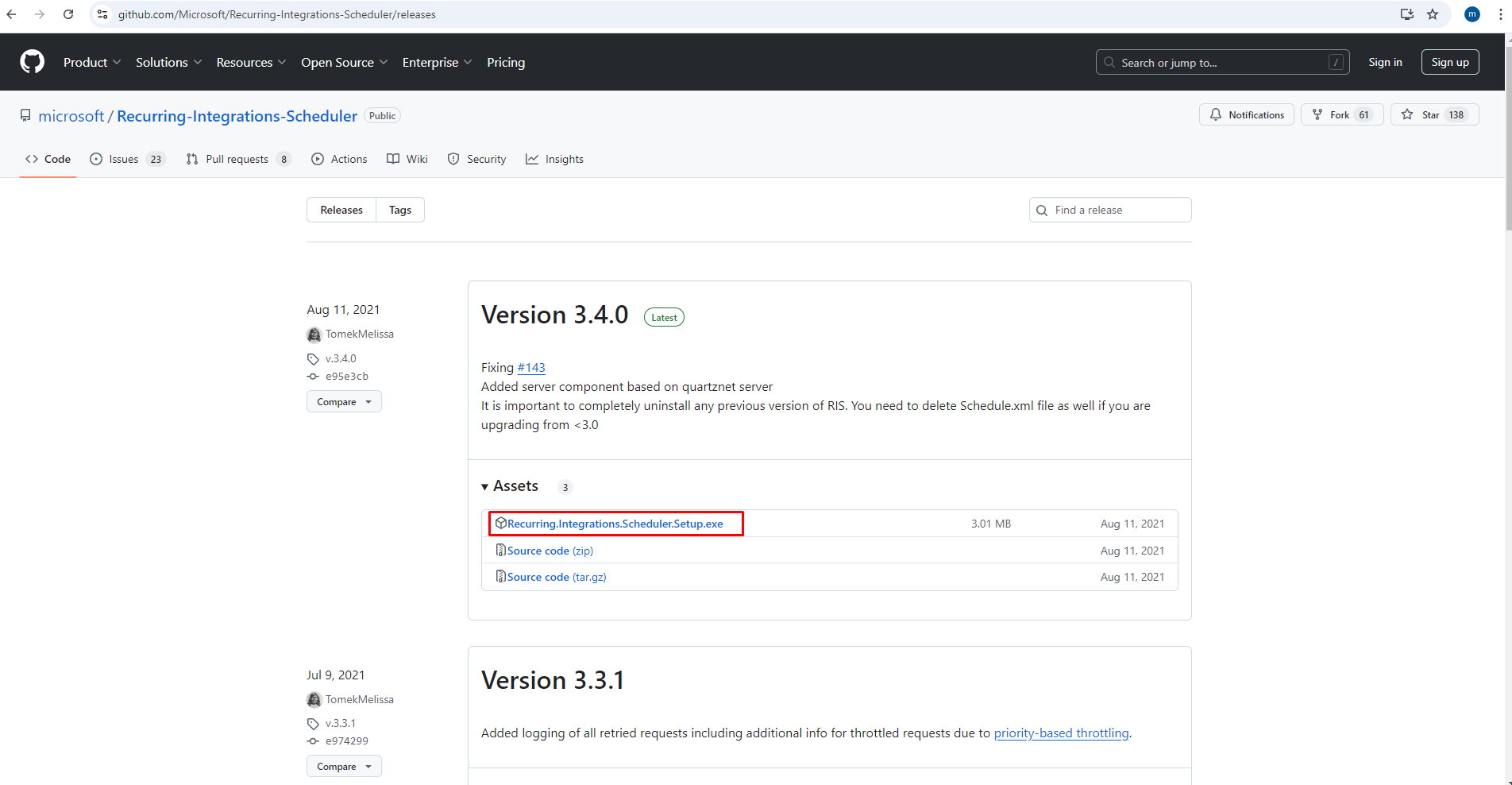
Step1:-I have downloaded this tool from GitHub link below

https://github.com/Microsoft/Recurring-Integrations-Scheduler/releases

Step2:-Once you download you can see file as shown in below

Step3:-After that click on the Package 


Step4:-Click on the install and finish as shown in below


Step5:-This application can be seen on location as shown in below


Step6:-Click on with administrator as shown in below

Step7:-Once you open the application UI can be seen as below

Step9:-Once you click on the parameters you can see D365fo details;Azure;Datajobs information

This is installation and set up of Recurring integration scheduler for D365FO.

Import and export can bee seen in further blogs

Thank you

Reference :-https://github.com/Microsoft/Recurring-Integrations-Scheduler/wiki


Friday, October 4, 2024

Get lookup of All addresses by legal entity

Requirement: I had one Requirement where I wanted to filter the global addresses based on selected legal entity(Company). So by following below code we can get those addresses in lookup which are related to that specific legal entity.


[Form]

public class Form2 extends FormRun

{

    [Control("String")]

    class FormStringControl1

    {

        /// <summary>

        ///

        /// </summary>

        public void lookup()

        {

            Query query = new Query();

            QueryBuildDataSource queryBuildDataSource;

            QueryBuildRange queryBuildRange;

            CompanyInfo  companyInfo;

            OMInternalOrganization  oMInternalOrganization;

            DirOrganizationBase   dirOrganizationBase;

            DirPartyTable dirPartyTable;

            DirPartyLocation DirPartyLocation;

            LogisticsLocation   logisticsLocation;

            LogisticsPostalAddress  logisticsPostalAddress;


            companyInfo=CompanyInfo::findDataArea("USMF");


            select oMInternalOrganization where  oMInternalOrganization.RecId==companyInfo.RecId


                join dirOrganizationBase where dirOrganizationBase.RecId==oMInternalOrganization.RecId


                join  dirPartyTable    where dirPartyTable.RecId==dirOrganizationBase.RecId;


            SysTableLookup sysTableLookup = SysTableLookup::newParameters(tableNum(LogisticsPostalAddress), this);


            sysTableLookup.addLookupField(fieldNum(LogisticsPostalAddress, Address));

            queryBuildDataSource = query.addDataSource(tableNum(LogisticsPostalAddress));


            while select  DirPartyLocation where DirPartyLocation.Party==dirPartyTable.RecId


                join logisticsLocation where logisticsLocation.RecId==DirPartyLocation.Location


                join logisticsPostalAddress  where logisticsPostalAddress.Location==logisticsLocation.RecId


            {


               // Info(strFmt("%1",logisticsPostalAddress.Address));
 

                queryBuildRange = queryBuildDataSource.addRange(fieldNum(LogisticsPostalAddress, RecId));

                queryBuildRange.value(any2Str(logisticsPostalAddress.RecId));


            }


            sysTableLookup.parmQuery(query);


            sysTableLookup.performFormLookup();


        }


    }


}

Sunday, September 29, 2024

Recurring Integrations Export through LogicApps

 Scenario:-In this blog we will see how to export packages from d365fo using recurring integrations via Logic App.

Step1:-Create a Data export project in D365fo by navigating to Data management workspaces

After that click on create recurring job and give application id which is created in azure(app registration),name 

Step2:-Click on set processing recurrence and choose time and count

Step3:-Now set monitoring recurrence choose time and count 

Step4:- Click on ok it will show a popup then click on yes

Step5:-Go to Azure create anew logic app and start creating new workflow .Over all workflow can be seen in below

Step6:- create a schedule went to extract file

Step7:-Now choose http and start exporting file by using deque 

Get :- https://<base URL>/api/connector/dequeue/<activity ID>

Step8:-now use parse json so that what ever you get in previous body you can now use fie location to download

Step9:-Now use http and download the file

Use method Get and choose file location from dynamic content 

Step10:-Now use create blob connector to  create a file in blob storage

Step11:-now again a http connector for acknowledgment of file  saying d365fo that I have received file

POST:- https://<base URL>/api/connector/ack/<activity ID>

In body use body of deque output

Step12:-on scheduled time logicapps fires  and start exporting file from D365fo

And one can see the status of Data Project whether processed or dequeued or downloaded

Step13:-You can  now open Blob storage and see Whether new files added or not


Thank You


Keep Daxing!!


Run some logic in workflow at particular step using WorkflowAutomatictask

 Scenario:- If you want to run some logic in workflow at particular we can use WorkflowAutomatictask Step1:- create a class   Code:-        ...